
Office printer and copier installation
A multifunction printer is a server with a paper tray. It holds addresses, credentials, scanned documents and a mailbox, and it needs to be installed like network equipment rather than plugged in and left. We install and configure office printers and copiers so every desk prints, scanning lands where it should, and the machine is not an open door onto your network.
What we do
- New multifunction printers and copiers installed and configured
- Network printing set up for every workstation
- Scan to email through Microsoft 365 or your mail provider
- Scan to folder on a server, NAS or SharePoint
- Fixed IP addresses, DNS names and print queues
- Drivers deployed consistently across the office
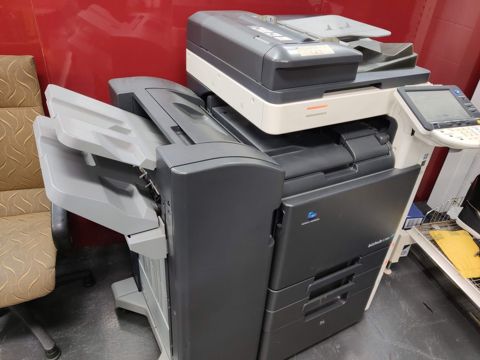
- Finishers, trays, stapling and booklet units set up
- Department and user codes for tracking printing
- Default settings that cut waste: duplex, mono, correct tray
- Admin passwords changed and unused services turned off
- Machines moved and reinstalled during an office relocation
- Old machines wiped before they leave the building
What a proper installation involves
We start with where the machine sits and how it connects: a wired connection wherever one is available, because a busy copier on Wi-Fi is the first thing people complain about. If there is no data point near it, we can run one, or work out the best alternative with you.
Then the network side. The printer gets a fixed address and, where it makes sense, a DNS name so workstations point at a name rather than a number that can change. Print queues are set up the same way on every computer, so a machine that is rebuilt later can be put back exactly as it was.
Next the document side: the trays and paper sizes the office actually uses, duplex and mono as the default so the expensive settings are a deliberate choice, and the finisher configured if there is one, with stapling, offsetting and booklets tested rather than assumed.
Last, scanning, which is where most installations are left half finished. We set up scan to email and scan to folder, test both from the panel with a real document, and write down what was used so the next change does not turn into a mystery.
Scan to email, and why it breaks
Scan to email is the feature offices rely on and the one that stops working most often. The reason is usually not the printer. Mail providers have been steadily removing the old ways a device could send mail: basic authentication is being switched off, app passwords are restricted, and plain unauthenticated relay is refused outright.
With Microsoft 365 there are a few supportable ways to do it, and which one fits depends on your tenant, your licensing and how old the printer is. Some older machines cannot do modern authentication at all, and for those the honest answer is a connector, a relay, or scan to folder instead. We will tell you which applies to your machine rather than leaving it on a setting that will fail at the next tenant change.
We also set it up so the mailbox it sends from is one you control and can see, not a personal account belonging to whoever was standing there on the day. When someone leaves, scanning should not leave with them.
Scan to folder and where documents land
Scanning straight into a folder is faster than emailing for anything that gets filed, and it avoids mailbox limits on large documents. It needs three things to line up: the folder and its permissions, an account the printer uses, and the protocol the machine supports.
We set the destination up on a server, a NAS or a SharePoint or OneDrive location, depending on where your documents already live. Where a machine only speaks older file-sharing protocols, we say so, because enabling an insecure protocol across the whole network to suit one copier is not a trade worth making.
The printer's account is given access to that folder and nothing else. If someone gets the credentials off the panel, and on many machines that is easier than it should be, they get one scan folder rather than your file server.
Printer security most offices miss
Almost every copier we meet still has the manufacturer's default admin password. That matters more than it sounds: from the web interface, someone on your network can read the address book, see the job log, sometimes pull previously scanned documents out of the machine's storage, and change where scans are sent.
So the basics: admin password changed and recorded somewhere you can find it, the web interface restricted, and services the office does not use turned off. Unused protocols are open doors, and a printer is rarely watched as closely as a computer.
Machines with a hard drive hold copies of what they print and scan. If a copier is being returned at the end of a lease, replaced or sold, that drive needs wiping or removing first. It is a five-minute conversation that has saved businesses a serious disclosure, and we will raise it before the truck arrives.
If you are working towards the Essential Eight or an insurance questionnaire, printers usually sit in the gap between the IT list and the office equipment list. See our cyber security page for how we handle that.
Moving printers and copiers
Copiers are heavy, awkward and easy to damage, and the settings inside them are the part everyone forgets. Before a move we record the configuration: addresses, queues, scan destinations, address book, user codes and finisher settings.
On the other side, the machine is reinstalled against that record rather than rebuilt from memory, so scanning and printing work on the first morning in the new office instead of the third. Where the machine is leased, we work in with the supplier's requirements for moving it.
Printer moves usually happen as part of a bigger job, so it is worth looking at our office relocations page as well.
What it costs
Office printer work is quoted per job or per visit rather than at the fixed repair price, because installing one desktop printer for three staff and commissioning a multifunction copier with a finisher, scan to folder and twenty workstations are not the same job.
Tell us the machine, how many staff need it and where scanning has to land, and we will come back with a price. If cabling or a new data point is needed, that is quoted with it rather than appearing afterwards.
Remote work is $179 per hour with a one hour minimum, and a surprising amount of printer configuration can be done that way once the machine is on the network.
Typical jobs
A typical job: a multifunction copier delivered to a small office with nothing configured. We fit it to the network with a fixed address, set up queues on every workstation, configure scan to email and scan to a folder on the server, set duplex and mono as the defaults, change the admin password and test the finisher before signing off.
A typical example: scan to email that stopped after a mail provider turned off a legacy authentication method. We move the machine onto a supported method and onto a shared mailbox the business owns, then test from the panel.
Another typical job: a copier being returned at the end of a lease. We record the configuration for the replacement, wipe the machine's stored documents before it leaves, and reinstall the new one against that record.
Questions
Do you install printers and copiers you did not supply?
Can you set up scan to email with Microsoft 365?
Why does our scan to email keep stopping?
Can you set up scanning into SharePoint or our server?
Should we worry about the copier's hard drive?
Can you connect the printer to every computer in the office?
Can you move our copier to a new office?
Do you run cabling for a printer that has no data point?
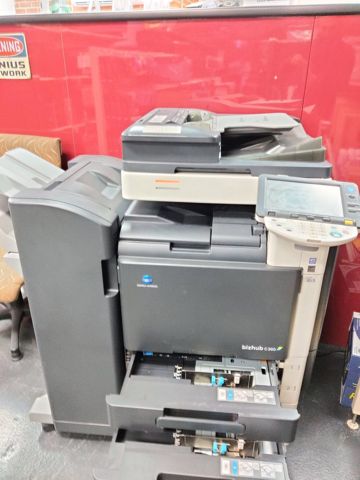
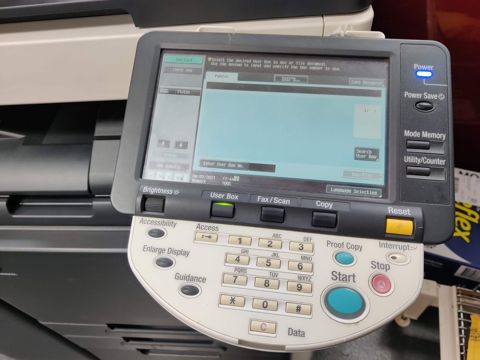
Printer & copier installation: work we have done
Serving Mount Druitt and 12km around
Ready to get it sorted?
Call for a chat about what you need. Onsite and business work is quoted per job or per visit.