Servers and shared storage
Plenty of small businesses still run a server or a NAS in a cupboard, and plenty of them should. The question worth asking is whether yours is patched, backed up, and still worth keeping.
What we do
- New server and NAS setup for small offices
- Windows Server file shares, users and permissions
- Backups that survive a failed disk or a fire
- UPS power protection and clean shutdowns
- Replacing ageing servers before they fail
- Monitoring, patching and scheduled maintenance
Do you need a server at all?
A lot of small businesses run a server because they always have. The honest starting question is what it actually does. If the answer is shared files and a printer queue, there are cheaper ways to do both, and the hardware is costing you power, maintenance and risk for a job it no longer needs to do.
A NAS suits businesses that want shared files on the local network with decent speed, do not need Windows user management, and have large files that are painful to work on over the internet. Trades with photo and video, print work and anyone with a design library usually land here.
A full server still makes sense where a line-of-business application requires it, where you need central user accounts and group policy across a lot of machines, or where an application is licensed to run on a server and moving it would cost more than keeping it. We will tell you which of those actually applies to you.
What a Windows server does in a small office
In most small offices a Windows server is doing three or four jobs at once: holding the shared files with permissions by department, running a database for the accounting or job management software, handling user accounts and sign-ins through Active Directory, and sometimes hosting remote desktop sessions for staff working away from the office.
Those jobs have different needs. File sharing wants disk space and a fast network, a database wants fast storage and memory, and remote desktop wants processor and memory for every user signed in. A server bought without that split in mind ends up slow at whichever job matters most to you.
The parts that get neglected are permissions and accounts. Folder access grows by exception until everyone can see everything, and old staff accounts stay enabled for years. Both are quick to fix and both matter more than people expect when something goes wrong.
RAID is not a backup
RAID keeps the server running when a disk fails. That is all it does, and it does it well. It does not help with a file deleted by accident, a folder encrypted by ransomware, a failed controller, a power surge, a theft or a fire, because every one of those reaches all the disks at once.
There is a second trap. The disks in a server are usually the same model, bought at the same time and worked identically since, so when one fails the others are at the same point in their lives. The rebuild after a replacement is the heaviest work those disks ever do, and a second failure during it is not rare.
So the rule is simple: RAID for uptime, backups for safety. That means a local copy that restores quickly, an offsite or cloud copy that survives the building, versions going back far enough to beat a problem you notice late, and a test restore that proves the whole thing works. Our backup and disaster recovery page covers how we set that up.
Power, heat and the cupboard it lives in
A UPS is not optional on a server. Its job is not to keep you working through a blackout, it is to hold the power steady long enough for the server to shut down cleanly, because a database cut off mid-write is how small businesses lose a day of transactions.
That means the UPS has to be connected to the server by its data cable and configured to trigger a shutdown, not just plugged in. Batteries wear out after a few years and a UPS with dead batteries is a power board with a light on it, so the batteries need testing and replacing on a schedule.
Heat is the other quiet killer. Servers put in a store cupboard with the door shut run hot, and hot electronics fail early. They also need somewhere they cannot be knocked, unplugged or walked off with, which is worth a thought if the cupboard is also where the stock lives.
Replacing an ageing server
The signs are consistent. The operating system is out of support or nearly there, the hardware warranty finished years ago, the disks are all the same age, and everyone has stopped mentioning how slow it is because they are used to it.
Waiting for it to fail is the expensive path. A planned replacement happens on a weekend with the data copied across in advance and a way back if something is wrong. An unplanned one happens on a Tuesday morning, with the business stopped and parts coming from wherever they can be found.
The replacement is also the moment to ask whether you still want a server at all, because migrating the data twice is work nobody wants to pay for. We look at what each application actually needs and put the options side by side before anything is bought.
Cloud or on-prem, and keeping it patched
Moving to the cloud suits businesses whose files are documents and spreadsheets, whose staff work from more than one place, and whose internet connection is solid. SharePoint or a hosted file service removes the hardware, the UPS and the replacement cycle, and turns a capital purchase into a monthly cost.
Staying on-prem suits large working files, applications that expect a local server, and sites where the internet upload speed would make cloud file work painful. Upload speed is the figure to check, because it is usually far lower than download and it is the one that matters when you are saving rather than opening.
Whichever way it goes, the server or NAS you keep needs looking after: updates applied rather than postponed, disk health and free space watched, backup reports read by a person, and the firmware on the box itself kept current. That is exactly the work a monthly plan from our MSP division, Managed IT Helpdesk, is built around.
Typical jobs
A typical job: a warehouse business with a server that has been running since the last office, no UPS, and a backup drive that filled up two years ago. We fit a UPS with a configured shutdown, set up local and offsite backups, run a test restore, and give the owner a replacement plan with a date on it.
A typical job: an office of ten still saving to a server whose operating system is out of support. We work through what each application needs, move shared documents into SharePoint, keep the one program that has to stay local on a smaller replacement box, and retire the old server with its drives securely wiped.
A typical job: a design studio whose shared drive is a consumer NAS that is full and slow. We size a replacement for the file types they actually work with, move the data across with permissions intact, and set the new box to back up to an offsite copy overnight.
Questions
Is a NAS good enough instead of a server?
Our server has RAID. Do we still need backups?
How long does a small business server last?
Should we move everything to the cloud?
Do you do server work onsite or remotely?
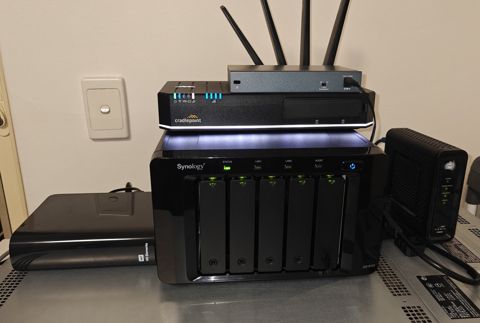
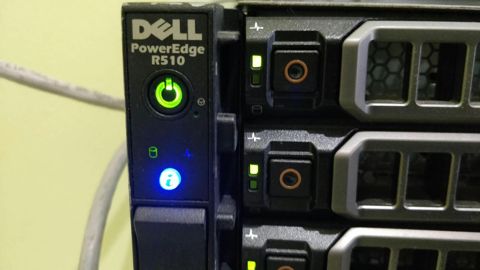
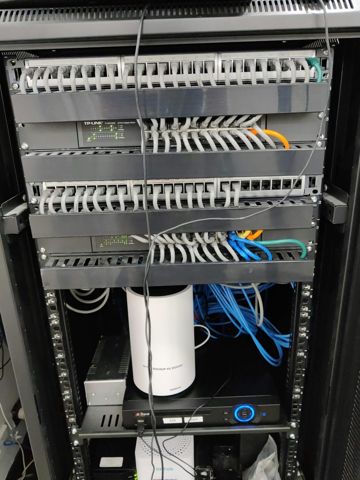
Servers and shared storage: work we have done
Serving Mount Druitt and 12km around
Ready to get it sorted?
Call for a chat about what you need. Onsite and business work is quoted per job or per visit.